
Writing Your First Production DAG
From Zero to Production — A Complete Walkthrough
This guide walks you through building a complete, production-ready DAG step by step. We'll build a real-world ETL pipeline that extracts data from an API, transforms it, loads it to a database, and sends a notification.
Step 1: The DAG File Structure
Every DAG file follows this structure:
# ============================================================
# File: dags/daily sales etl.py
# Description: Daily ETL pipeline for sales data
# Author: Data Engineering Team
# ============================================================

# --- 1. Imports ---
from airflow.sdk import dag, task
from datetime import datetime, timedelta
import json

# --- 2. Default Arguments ---
default_args = {
    "owner": "data-engineering",
    "depends_on_past": False,
    "email": ["data-team@company.com"],
    "email_on_failure": True,
    "email_on_retry": False,
    "retries": 3,
    "retry_delay": timedelta(minutes=5),
    "execution_timeout": timedelta(hours=1),
}

# --- 3. DAG Definition ---
@dag(
    dag_id="daily_sales_etl",
    default_args=default_args,
    description="Extract sales data from API, transform, and load to warehouse",
    schedule="0 6 * * *",
    start_date=datetime(2024, 1, 1),
    catchup=False,
    tags=["production", "sales", "etl"],
    doc_md=__doc__,
    max_active_runs=1,
)
def daily_sales_etl():

    # --- 4. Task Definitions ---
    @task()
    def extract() -> dict:
        """Extract data from the sales API."""
        import requests
        response = requests.get(
            "https://api.company.com/v1/sales",
            headers={"Authorization": f"Bearer {Variable.get('api_token')}"},
            params={"date": "{{ ds }}"},
        )
        response.raise_for_status()
        data = response.json()
        return {"records": data, "count": len(data)}

    @task()
    def validate(raw: dict) -> dict:
        """Validate extracted data."""
        records = raw["records"]
        assert len(records) > 0, "No records extracted!"
        assert all("amount" in r for r in records), "Missing 'amount' field!"
        return raw

    @task()
    def transform(validated: dict) -> list:
        """Clean and transform data."""
        records = validated["records"]
        return [
            {
                "sale_id": r["id"],
                "amount": round(float(r["amount"]), 2),
                "currency": r.get("currency", "USD"),
                "timestamp": r["created_at"],
            }
            for r in records
            if float(r["amount"]) > 0
        ]

    @task()
    def load(transformed: list):
        """Load data to PostgreSQL warehouse."""
        from airflow.providers.postgres.hooks.postgres import PostgresHook
        hook = PostgresHook(postgres_conn_id="warehouse")
        hook.insert_rows(
            table="sales_fact",
            rows=[(r["sale_id"], r["amount"], r["currency"], r["timestamp"])
                  for r in transformed],
            target_fields=["sale_id", "amount", "currency", "timestamp"],
        )
        return len(transformed)

    @task()
    def notify(row_count: int):
        """Send completion notification."""
        from airflow.providers.slack.hooks.slack import SlackHook
        hook = SlackHook(slack_conn_id="slack_data_team")
        hook.send(
            text=f"Sales ETL completed: {row_count} records loaded for {{ ds }}",
            channel="#data-pipeline-alerts",
        )

    # --- 5. Task Dependencies ---
    raw = extract()
    validated = validate(raw)
    transformed = transform(validated)
    rows = load(transformed)
    notify(rows)

# --- 6. DAG Instantiation ---
daily_sales_etl()
Step 2: Understanding Each Section
| Section | Purpose |
|---|---|
| Imports | Import Airflow modules and any external libraries |
| Default Args | Set common parameters (retries, alerts, timeouts) for all tasks |
| DAG Definition | Configure the DAG's ID, schedule, tags, and behavior |
| Task Definitions | Define the actual work each task performs |
| Dependencies | Specify the execution order |
| Instantiation | Call the @dag function to register it with Airflow |
- Set
catchup=Falseunless you specifically need backfilling - Set
max_active_runs=1to prevent overlapping runs - Always add
tagsfor easy filtering in the UI - Use
execution_timeoutto prevent runaway tasks
Step 3: Save It, and Watch Airflow Find It
Writing the file is only half the job — here's what actually happens next, end to end.
3.1 — Save the file into your DAGs folder
Airflow only looks in one place: the folder configured as [core] dags_folder in airflow.cfg (by default, $AIRFLOW_HOME/dags). The file above needs to physically live there:
# The file from Step 1, saved exactly where Airflow expects it
$AIRFLOW_HOME/dags/daily_sales_etl.py
Nothing else is required — no registration command, no restart. A background process called the DAG File Processor continuously rescans this folder (by default every 30 seconds, [scheduler] dag_dir_list_interval) and parses any .py file that defines a DAG.
3.2 — Confirm it shows up in the Airflow UI
If the file is syntactically valid Python and the DAG is well-formed, it appears in the DAGs list on its own — no button to click, no manual step:
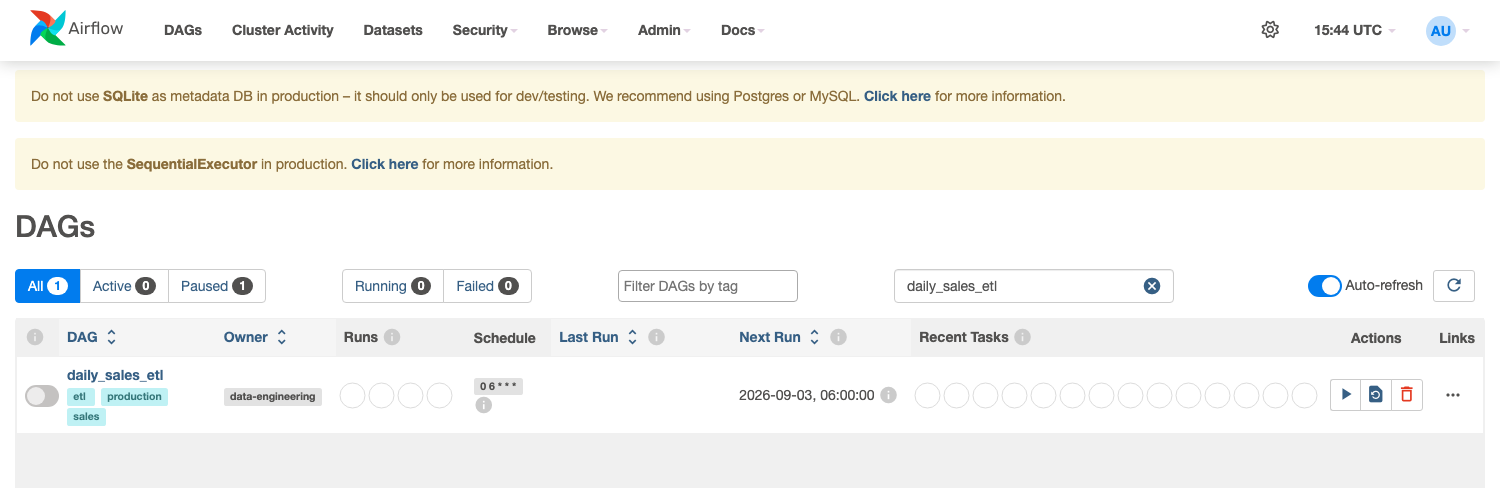 Figure — this is the DAG from Step 1, moments after being saved. Note it's paused by default (the toggle on the left) — new DAGs never run automatically until you explicitly turn them on, exactly as intended.
Everything here is read straight from the code you wrote: the tags=["production", "sales", "etl"] list, the schedule="0 6 * * *" (rendered as 0 6 * * *), and owner="data-engineering" from default_args. If any of these look wrong, the fix is always the same — edit the file, save it, wait for the next scan.
Check DAG Import Errors at the top of the DAGs list first — a syntax error or bad import fails silently from the UI's perspective (no crash, the DAG just never appears) but is always reported there with a full traceback.
3.3 — Trigger it and read the Graph View
Toggle the DAG on, click the play button to trigger a manual run, and open the Graph tab to see every task and how they connect:
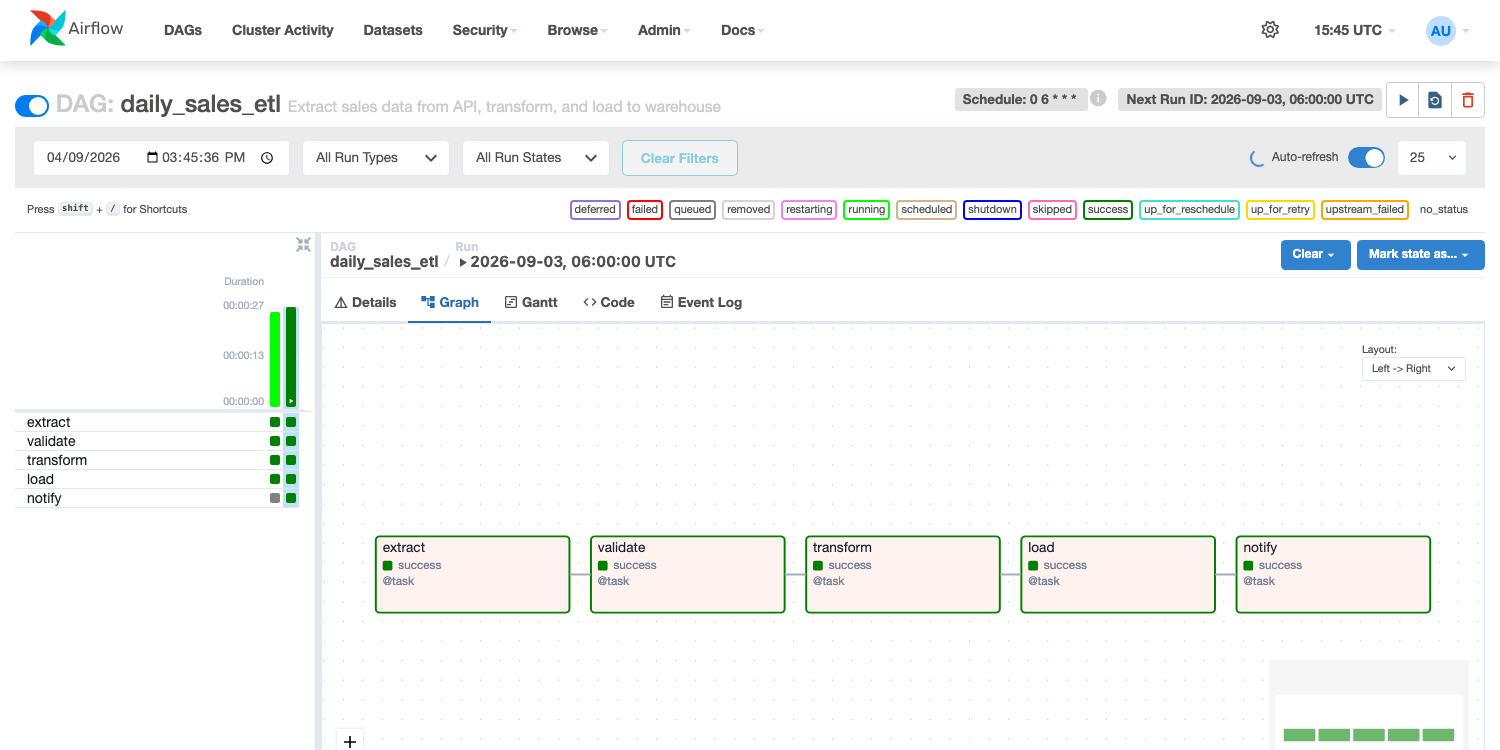 Figure — the exact five tasks from Step 1's code, in the exact order
 raw = extract(); validated = validate(raw); ... wires them. Green means success; click any box to see its logs.
This is the full loop: write the code → save it in the DAGs folder → Airflow discovers and parses it automatically → the UI shows you exactly the structure you wrote → running it confirms it actually works. Every DAG you build for the rest of this course follows this same loop.